Open Worship / Guides / Getting started
Getting started with live sermon translation
From your join code to your first translated service. Steps 1–3 take about five minutes and you only do them once; steps 4–11 set up your service; step 12 is what you do every Sunday.
What you need
- A join code from Open Worship, or your church's own Soniox key.
- A computer at the sound desk or livestream station, with Chrome or Edge and a steady internet connection.
- The sermon's sound coming into that computer: a mixer feed through a USB audio interface is best; a microphone works too.
- Optional: headphones to hear the spoken translation, and OBS or ProPresenter for captions on your stream or screens.
Your congregation needs nothing but their phones. There is no app to install.
How it works
The computer at the sound desk listens to the service through your mixer. As the preacher speaks, each sentence is translated and appears within a second or two on every phone that opened your church's link, and on your screen or stream if you use one. When he reads Scripture, the verse can appear word for word from the Bible, with its reference. Readers pick their own language and can tap Listen to hear it spoken. Swear words never appear and are never spoken.
The steps
Create your account
Go to Create an account. With a join code from Open Worship, type it exactly as you received it; dashes and capitals don't matter. With your own Soniox key, choose Own Soniox key (see the own-key guide). Then enter your name, an email and a password of at least 8 characters.
Name your church
Type your church's name and press Create church. You land on the Translation page.
Create a service
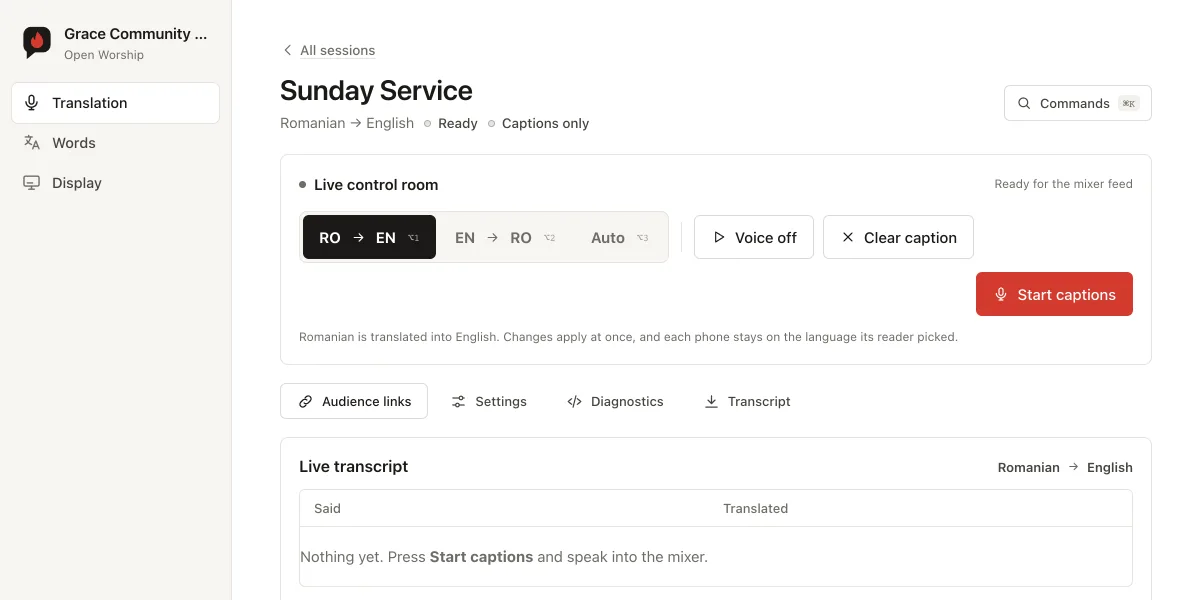
Type a name such as “Sunday Service” and press Start a session, then click its name to open it. Reuse it every week: it keeps its settings, and the link your congregation uses never changes.
Get to know the console
This is the screen you run the service from: the Live control room (direction, voice, clear caption, start), Audience links, Settings, the live transcript, Audio routing and the Stream overlay.
Choose your languages
In Settings, choose One way (From and Into) or Auto, both ways for a bilingual service. Tick any extra languages your congregation reads, such as Spanish or Ukrainian. Press Save & apply.
Bible wording and verses
Choose Bible wording to translate the sermon by meaning in the words of your Bibles, for example Cornilescu and the New King James Version, or Literal to stay close to the preacher's words. Tick “When he reads a verse, show it word for word, with its reference”. It finds the verse best when the reference is said first.
Choose your church's voice
Under Spoken translation, turn the voice on for the in-ear at the sound desk and for Listen on phones. Play the samples, compare every voice, and press Use on the one you like. The whole church hears the voice you pick; each reader sets their own speed.
Teach it your church's words
Open Words in the menu. Add names to listen for (your pastor, guest preachers, your town), fixes for words the translation gets wrong, such as Holy Ghost ⇒ Holy Spirit, and church words in Romanian and English. Fixes apply at once.
Connect your microphone or mixer
Open Audio routing and allow the microphone. Choose the input the sermon comes in on: a mixer feed through a USB audio interface gives the cleanest captions. Press Check input while someone speaks; the bar should move.
Share with the congregation
Open Audience links. Your church has one permanent link and QR code that always opens whichever service is live. Show on screen opens a page to project with a large QR code; print it for pew cards, or put the link in your bulletin and group chat.
Captions on your stream or projector
Optional. Copy the overlay link from Stream overlay and add it to OBS as a Browser Source or to ProPresenter as a Web object. Choose the look on the Display page.
Run the service
Press Start captions. Use RO → EN, EN → RO or Auto to change direction, Pause for prayer or a song, and Stop session at the end. If nothing is said for 30 minutes, it pauses on its own.
What readers see
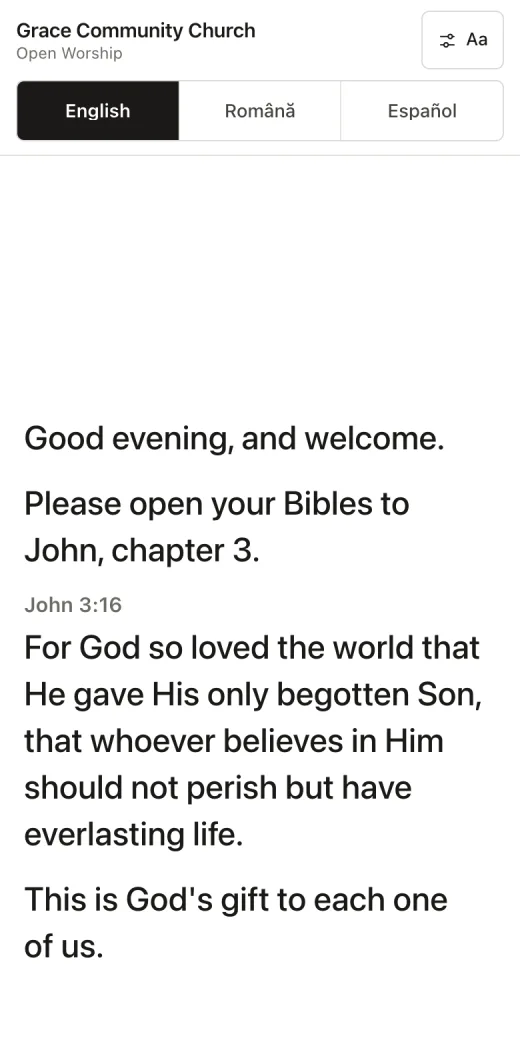
After scanning the code, readers see the captions straight away. They tap their language at the top; a verse appears word for word with its reference; Aa changes the text size, keeps the screen on and sets the voice's speed. Their language is remembered, even if you change direction mid-service.
If something goes wrong
- No captions appear
- Open Audio routing, press Check input while someone speaks, and make sure the bar moves. If not, pick the right input or check the cable from the mixer.
- Captions are of the room, not the pulpit
- The laptop's own microphone is selected. Choose your mixer's input under Audio routing.
- “Microphone blocked”
- Click the padlock next to the address in Chrome, set Microphone to Allow, and reload the page.
- A name keeps coming out wrong
- Add it on the Words page, under names to listen for, or as a fix.