Open Worship / Guides / Captions in OBS
Live translated captions in OBS
Put the sermon's translation on your livestream. Open Worship gives you one web page with a transparent background; OBS lays it over your camera like any other source.
Set it up once
Copy the overlay link
In your service's console, open Stream overlay at the bottom and press Copy overlay link.
Add a Browser Source
In OBS, in the scene you stream, press + under Sources, choose Browser and name it, for example “Translation”.
Paste and size it
Paste the address into URL, set Width to 1920 and Height to 1080, and leave Custom CSS empty.
Put it on top
Drag the source above your camera in the Sources list, so the words sit over the picture. Add it to every scene that should show captions.
Choose how the captions look
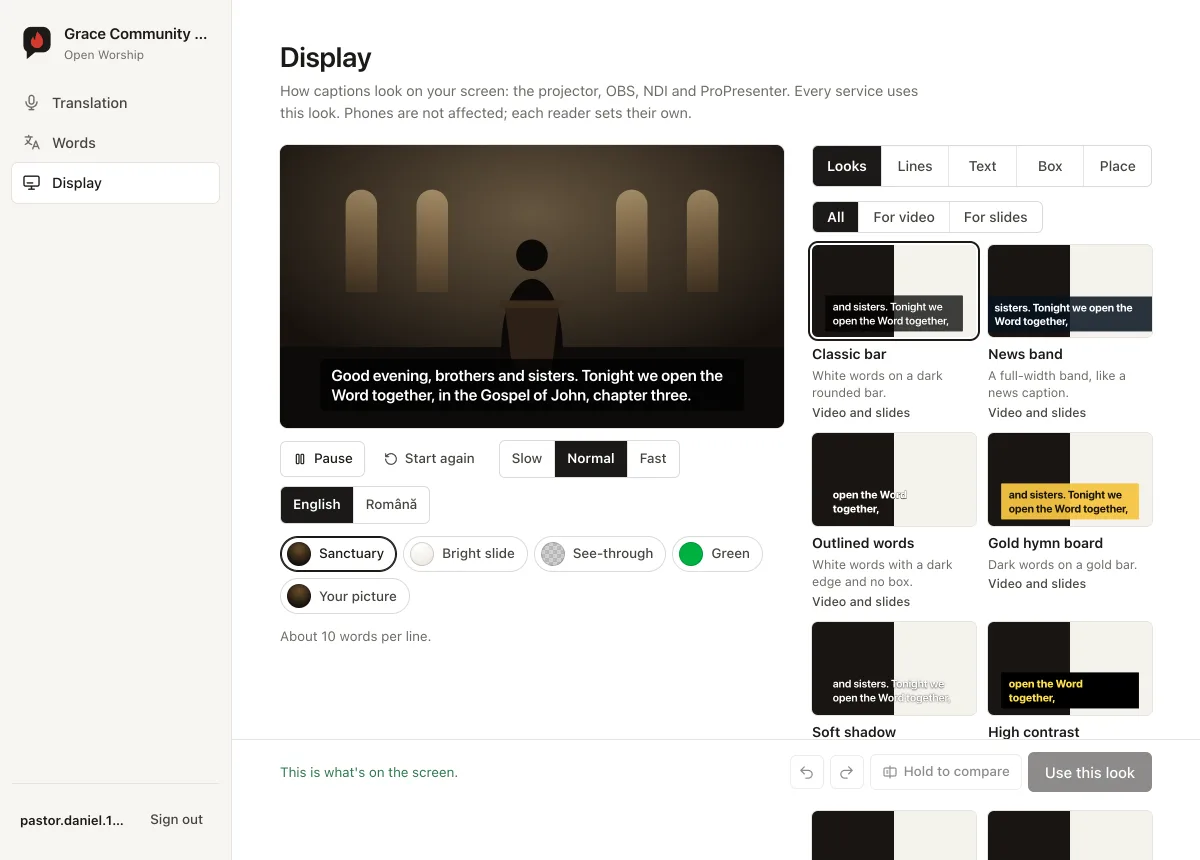
Open Display in the menu. A sample sermon plays over a sanctuary, a bright slide, a see-through or green background, or a picture of your own, exactly as your screen will show it. Pick one of 16 ready-made looks, such as a classic bar, a news band or film subtitles, then adjust the font, the box and where the caption sits. Nothing changes until you press Use this look; then open screens follow within a few seconds, even during a service.
During the service
- The caption stays up while anyone speaks, through a whole verse, and goes away after 15 seconds of quiet.
- Press Clear caption in the console to empty it at any moment, for example when a song starts. Phones keep their text.
- The address never changes and always shows whichever service is live, so set it up once.
If nothing shows
- The screen is empty
- Captions appear only while a service is live and someone is speaking. Press Start captions in the console and check the transcript is moving.
- The words are in the wrong language
- Press the right direction in the console (RO → EN, EN → RO or Auto). It changes at once.
- The look did not change
- Press Use this look on the Display page. A screen that has been open for days may need its page reloaded.
New to Open Worship? Start with the getting-started guide.